
If you need edits to travel in both directions, sign the other app in with your Google account. That gives you full two-way syncing wherever the provider supports it. If you only need to see your availability and never touch the events from the other app, subscribe to Google's secret iCal address instead and leave editing to Google Calendar itself.
Two flows cover almost every situation:
- Sign in with Google — connects Outlook, Apple Calendar, or an Android device directly to your Google account, giving you editable, two-way sync wherever the receiving app supports it.
- Subscribe to the secret iCal/ICS address — a read-only feed you paste into another calendar app so it displays your Google events without letting anyone edit them from that side.
Here's the catch most people miss: iCal subscriptions are often slow. Some apps only refresh them every few hours. If you need near real-time updates, an account sign-in with API access (or a dedicated sync tool using webhooks) is the only setup that reliably keeps pace, sometimes propagating changes in as little as four seconds.
Key Takeaways
Reliable Google Calendar sync comes down to matching the method, native sign-in, ICS feed, or third-party bridge, to whether you need edits to flow both ways or just visibility.
| Point | Details |
|---|---|
| Try native sign-in first | Use "Sign in with Google" wherever the receiving app supports it, for genuine editable two-way sync. |
| Use ICS for read-only needs | Subscribe to Google's secret iCal address when you only need to display availability, not edit it. |
| One calendar per domain | Pick a single authoritative calendar for each scheduling area and test with a short event first. |
| Watch refresh speed | ICS feeds often update on a delay; webhook-based tools can propagate changes in around four seconds. |
| Trade teams need structure | Tradewisehq gives trades businesses live workforce scheduling built in, reducing reliance on stitched-together calendar bridges. |
Table of Contents
- What are the main ways to sync Google Calendar?
- How do you set up sync on Android, iPhone, macOS, and Outlook?
- What's the difference between one-way and two-way calendar sync?
- When should you use a third-party sync tool?
- Why is my Google Calendar not syncing?
- How does Google Calendar handle incremental sync?
- How should trade teams keep staff calendars in sync?
- What quick habits actually prevent sync headaches?
- Is there a better option than juggling calendar bridges?
- Where can you find official setup and developer guidance?
- What's the fastest way to sync Google Calendar with Outlook?
- Why does my synced calendar show old or missing events?
- Can I sync more than one Google account to the same device?
- Do I need an app-specific password to sync Google Calendar?
- Is two-way sync riskier than one-way sync?
- Sources
What are the main ways to sync Google Calendar?
Three approaches cover nearly every scenario, and picking the wrong one is usually what causes the frustration people associate with calendar syncing in the first place.
Native account sign-in uses OAuth to connect your Google account directly inside another app, Outlook, Apple Calendar, an Android phone, and gives you genuine two-way sync where the receiving app supports it. Create an event on your phone and it appears on your laptop within moments. Edit it from either side and the change flows back.
iCal/ICS subscription is a one-way, read-only feed. You grab Google's secret address and drop it into another calendar app, which then displays your events but can't push anything back to Google. This is the right call when you want to publish your availability without letting a second app tamper with the original data.
Third-party sync services sit between two or more calendar providers and handle the mapping themselves; useful when the native options fall short, particularly for Outlook-to-Google bridging on older desktop clients that don't support modern OAuth sign-in.
| Method | Directionality | Editable remotely | Platforms | Setup complexity | Typical cost | Refresh speed |
|---|---|---|---|---|---|---|
| Native sign-in (OAuth) | Two-way | Yes | Android, iOS, macOS, Windows, some Office 365 builds | Low | Free | Near real-time |
| iCal/ICS subscription | One-way | No | Almost any calendar app | Low | Free | Minutes to hours (polling) |
| Third-party sync tool | Configurable | Yes, if set to two-way | Cross-provider (Google, Outlook, iCloud) | Medium | Free tiers to paid plans | Seconds with webhooks, slower with polling |
Pro Tip: Pick one calendar to act as the single source of truth for each type of event. If two systems both think they own the same appointment, you'll eventually get a duplicate or a silent deletion when one side "corrects" the other.
How do you set up sync on Android, iPhone, macOS, and Outlook?
Each platform handles the connection slightly differently, and the fastest way to get this right is to work through your specific device rather than guessing from general instructions.
- Android (Google Calendar app). Make sure you're signed into the right Google account under Settings → Accounts, then open Settings → Auto-sync personal data and confirm it's switched on. Inside the Google Calendar app itself, check that your calendar is ticked under the account's calendar list, since a hidden calendar simply won't show new events.
- iPhone and iPad (Apple Calendar). Go to Settings → Calendar → Accounts → Add Account → Google, sign in, and toggle Calendars on. If you use 2-Step Verification, you may be prompted for an app-specific password rather than your normal one, particularly on older iOS versions.
- macOS Calendar. The path is nearly identical: System Settings → Internet Accounts → Add Account → Google, then tick Calendars in the list of services to sync. The same app-specific password rule applies if two-factor authentication is active.
- Outlook desktop and Microsoft 365. Recent Outlook builds let you add a Google account directly and support OAuth sign-in, which enables proper two-way behaviour between the two providers. Older Outlook clients that lack this option are usually limited to subscribing to Google's iCal feed as a read-only calendar, in which case a third-party connector is the only route to genuine two-way sync.
Once you've connected an account, run a quick sanity check:
- Create a short test event with a distinctive name.
- Edit the time or title from the other app.
- Delete it and confirm it disappears everywhere.
If any of those three steps fail, you've caught a sync problem before it costs you a missed appointment rather than after.
What's the difference between one-way and two-way calendar sync?
A one-way ICS feed only ever reads from Google Calendar. It's ideal for publishing your availability to a shared team calendar or a public booking page without exposing the ability to edit or delete the original events. The trade-off is refresh speed: many apps only poll an ICS feed periodically, so a change you make in Google Calendar might not appear elsewhere for a while.
Two-way sync, built on OAuth and API access, lets edits travel in both directions. Move a meeting in Outlook and it updates in Google Calendar too, and vice versa. When the underlying service uses push notifications instead of polling, propagation can happen in roughly four seconds. The risk is proportional to the convenience: a bulk edit, an accidental mass-delete, or a badly configured recurrence rule on one side now has a direct path to overwrite the other.

| Factor | One-way (ICS) | Two-way (API/OAuth) |
|---|---|---|
| Edits propagate back | No | Yes, if configured |
| Typical refresh | Minutes to hours | Seconds to near real-time |
| Recurrence handling | Often simplified or flattened | Usually preserved accurately |
| Risk of accidental changes spreading | Low | Higher |
| Best use case | Publishing availability | Shared, actively managed calendars |
Recurring events are where one-way feeds most often stumble. Some ICS consumers flatten a recurring series into individual instances, which can make later edits to the recurrence rule fail to show up correctly on the receiving end. If your calendar leans heavily on repeating events, test a recurring series specifically before trusting either sync method for anything important.
When should you use a third-party sync tool?
Native sign-in and ICS feeds cover most personal needs, but they run out of road in a few common situations: you need genuine two-way sync between Google and an Outlook version that doesn't support OAuth, you want to filter which event fields get copied across (hiding descriptions or attendees, for instance), or you're trying to avoid duplicate entries when the same person appears on two connected calendars.
Before handing sync duties to a third-party service, check a handful of things:
- Direction options — can you set one-way, two-way, or per-calendar rules independently?
- Privacy controls — does it copy full event details, or can you restrict it to busy/free blocks only?
- Conflict handling — what happens if the same event is edited on both sides before the next sync?
- Data retention — where is your calendar data stored, and for how long?
- Cost — is there a genuinely usable free tier, or does real functionality sit behind a subscription?
Options worth knowing about include desktop-based connectors such as Outlook Google Calendar Sync, which runs locally rather than through the cloud, and Marketplace listings like SyncThemCalendars, which advertises both one-way and two-way modes with a quick setup flow. Marketplace apps also vary widely in how carefully they handle privacy and recurring events.
Vendor marketplace listings make it easy to connect calendars in minutes, but the quality of privacy controls and conflict handling varies considerably from one tool to the next. Test recurring events and deletions during setup, not after you've come to depend on the connection.
Run any new tool against a throwaway calendar with a handful of test events, including at least one recurring series, before you point it at anything you actually rely on.
Why is my Google Calendar not syncing?
Most sync failures trace back to one of a small set of causes, and working through them in order usually finds the culprit faster than guessing.
- Check calendar visibility. Confirm the calendar you're editing is actually ticked as visible in both the source and destination apps. A hidden calendar can accept new events invisibly.
- Check account sync toggles. On Android, revisit Settings → Accounts → Auto-sync personal data. On iOS or macOS, confirm Calendars is switched on for that account under Internet Accounts.
- Verify you're creating events on the right calendar. If you have multiple Google accounts or calendars, it's easy to add an event to the wrong one and assume sync has failed.
- Remove and re-add the account. This resolves a surprising number of stuck-sync issues, particularly after an OS update changes how permissions are stored.
- Check app-specific passwords and 2-Step Verification. If you enabled two-factor authentication after the original setup, an old connection may need re-authenticating with a fresh app-specific password.
- Look for duplicate subscriptions. Adding the same iCal feed twice, or mixing a native sign-in with a leftover ICS subscription, produces duplicate or conflicting entries.
Some causes are platform-specific:
- On iPhone, an expired or incorrectly entered app-specific password is the single most common reason an iCloud-linked Google feed silently stops updating.
- In Outlook, cached mode can delay how quickly new events appear, even when the underlying sync is working correctly.
- Genuinely old Outlook builds that only support ICS subscriptions will never show two-way behaviour, no matter how the account is configured. That's a limitation of the client, not a fault in your setup.
Pro Tip: When troubleshooting, test with a recurring event as well as a single one. A calendar can look perfectly synced on simple one-off appointments while quietly mishandling every third instance of a weekly meeting.
How does Google Calendar handle incremental sync?
Anyone building or debugging an API-based sync client needs to understand how Google Calendar avoids re-downloading your entire calendar every time something changes. The pattern is straightforward once you've seen it laid out.
- The client performs a full initial sync and stores the
nextSyncTokenreturned at the end of that request. - Every subsequent request passes that token, and the API returns only what's changed since it was issued.
- If the API responds with a
410 Gonestatus, the token has expired or become invalid. The correct response is to discard the local copy entirely and perform a fresh full sync, not to retry the same token. - When a change set is large, results are paginated using a
pageToken, so a robust client needs to loop through pages rather than assuming one response contains everything.
Developer documentation on incremental synchronisation sets this pattern out in detail, and it's the reason well-built sync tools rarely need to re-scan your whole calendar just to catch one new event.
Push notifications and webhooks are the other half of a reliable client. Polling on a fixed schedule means you're always a little behind; a webhook tells your client the moment something changes, which is how well-engineered services achieve updates in roughly four seconds rather than several minutes. A sensible design still keeps polling as a fallback, in case a webhook delivery is missed or the connection drops.
How should trade teams keep staff calendars in sync?
Double-booking a job because two systems disagreed about who was free is one of the more expensive and entirely avoidable mistakes a trades business makes. The fix isn't a cleverer sync tool. It's picking one calendar as the authority and being disciplined about what flows where.
Nominate a single system as the source of truth for each scheduling domain, one calendar for shared job bookings, one for each engineer's personal availability, and mirror everything else off it rather than trying to keep three systems all fully editable at once. Personal calendars generally only need to expose busy/free blocks outward using one-way sync; reserve full two-way access for the shared job calendar that dispatchers and engineers both need to edit directly. Test any new configuration against a recurring job (a weekly maintenance visit, for instance) before rolling it out across the whole team, since recurrence is exactly where sync tools most often behave inconsistently.
The moment you let every engineer's personal calendar write directly into the shared job calendar, you've built a system where one accidental edit can silently double-book three other people. One authoritative calendar per domain isn't caution for its own sake. It's the only structure that stops that failure mode.
A clear rota workflow makes this far easier to enforce, and it's worth pairing with a documented daily schedule pattern so new starters understand which calendar owns which type of booking from day one.
What quick habits actually prevent sync headaches?
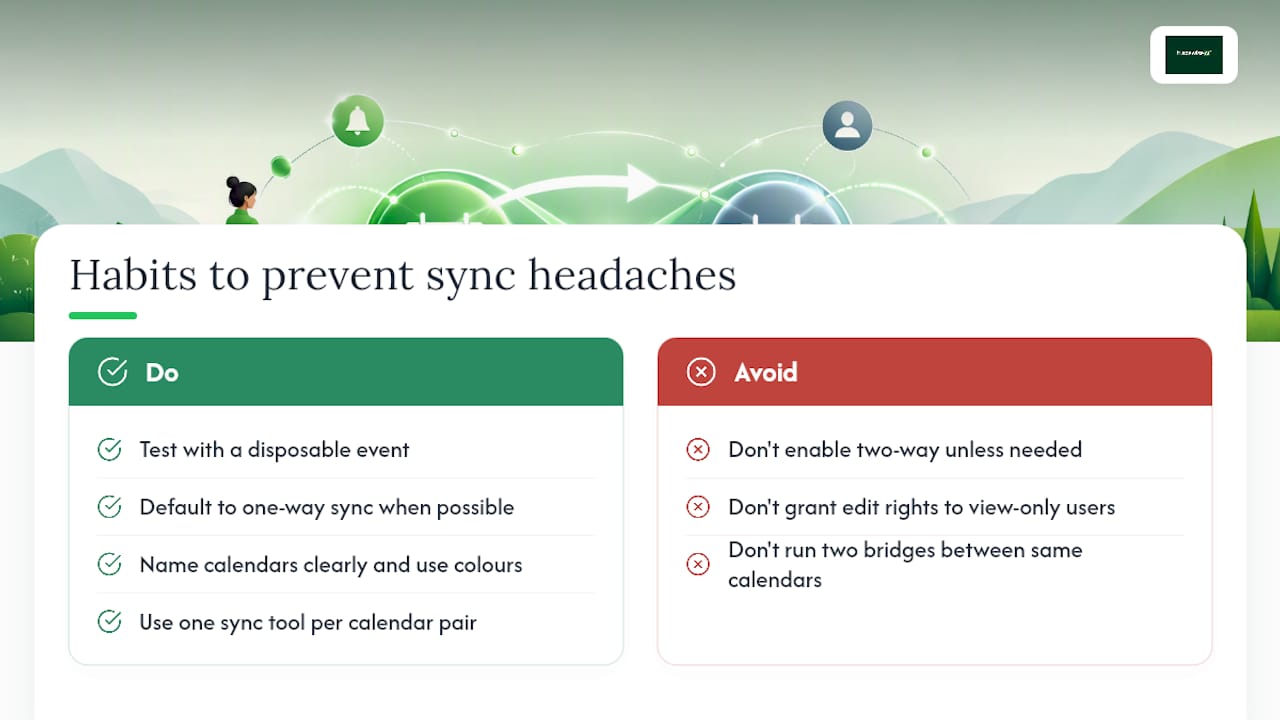
Test with a short, disposable event before you trust any new connection with real bookings. Create it, edit it, delete it, and check both ends behave the way you expect. This takes two minutes and catches the vast majority of configuration mistakes before they cost you anything.
Default to one-way sync wherever you genuinely only need visibility. Two-way sync feels more capable, but every additional write path is another way for an accidental change to spread somewhere you didn't intend. If a colleague only needs to see when you're busy, don't hand them the ability to edit your calendar as a side effect of convenience.
Name your calendars clearly and give each one a distinct colour tied to its source. When you're staring at a packed week across three synced calendars, being able to tell at a glance which system an event actually lives in saves real time when something needs fixing. Run through your connections again after any major OS or app update. Permission models change more often than people expect, and a sync that worked perfectly last month can quietly break the moment your phone updates itself overnight. Keep a single sync tool per calendar pair. Running two different bridges between the same two calendars, even briefly while testing an alternative, is one of the most reliable ways to generate duplicate events that take far longer to clean up than they took to create.
Is there a better option than juggling calendar bridges?
Native sign-in, ICS feeds, and third-party connectors all do a genuinely good job for personal use and small setups. For a trades team juggling several engineers, multiple job sites, and a dispatcher trying to avoid double-booking, stitching together two or three separate sync tools starts to become its own admin burden.
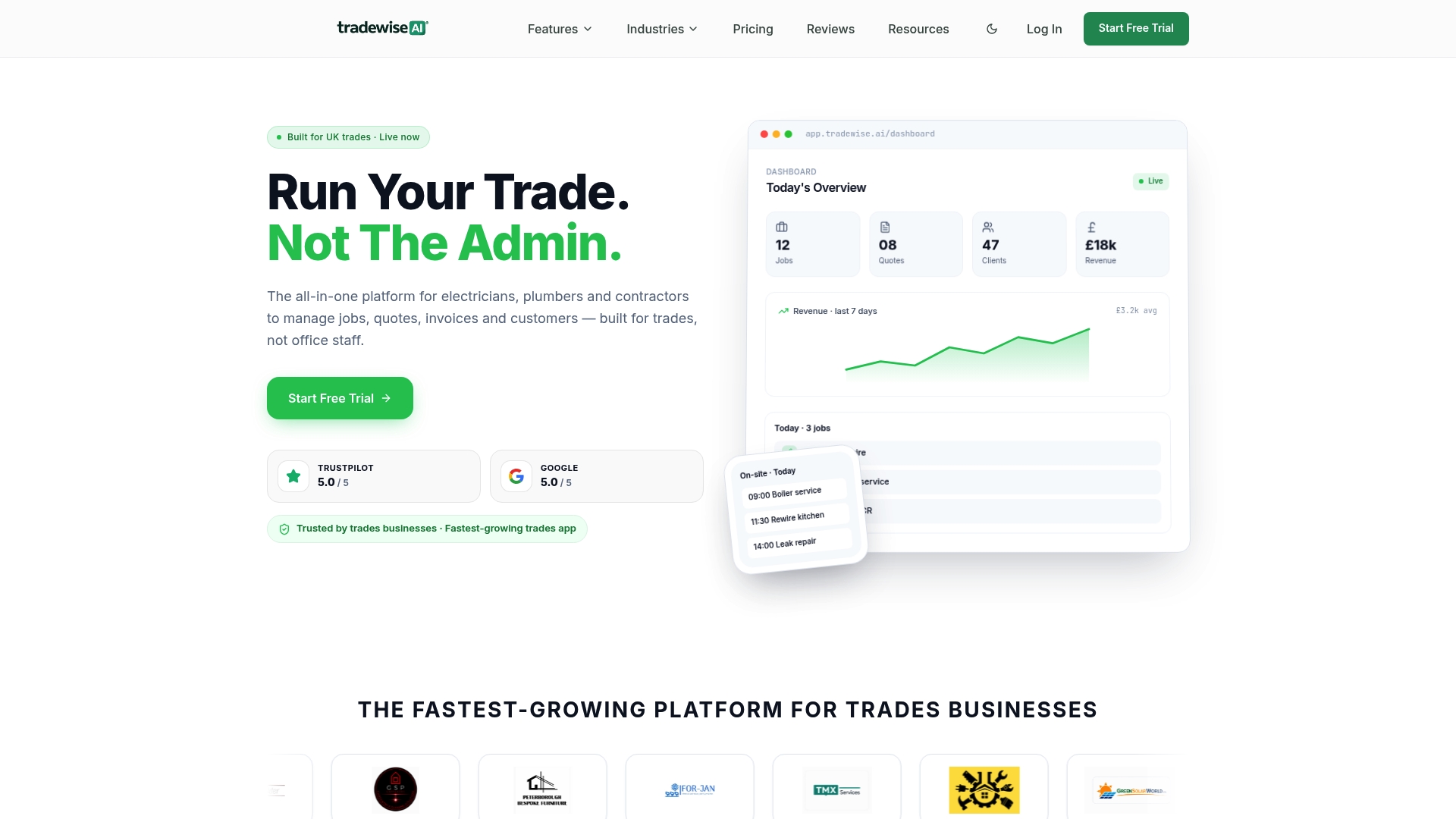
Tradewisehq builds scheduling and workforce visibility into a single mobile-first platform rather than relying on bridges between separate calendar apps. Jobs, staff assignments, and live availability update across the whole team automatically, so there's no ICS feed to check for delays and no second tool mediating between Google Calendar and Outlook behind the scenes.
That doesn't make native syncing or Marketplace tools the wrong choice. If you only need to keep a couple of personal calendars aligned, signing in with Google or trying a listing like SyncThemCalendars is perfectly sensible, and plenty of trades businesses run happily on exactly that setup. But if double-bookings, missed jobs, or admin time spent reconciling calendars are becoming a recurring cost, it's worth seeing what an integrated scheduling system looks like for your team. Tradewisehq offers a 14-day free trial, long enough to run a real week of jobs through it and see whether a single source of truth solves the problem that separate calendar tools keep patching over.
Where can you find official setup and developer guidance?
- Sync your calendar with computer programs — Google's own guide to account sign-in and iCal subscriptions.
- Add Google Calendar events to Apple Calendar — official steps for iPhone and iPad, including app-specific password guidance.
- Synchronise resources efficiently — Google's developer documentation on incremental sync tokens and pagination.
- SyncThemCalendars — a Workspace Marketplace listing worth testing on a small calendar before wider rollout.
- Outlook for Windows — Microsoft's overview of Outlook's account integration capabilities.
What's the fastest way to sync Google Calendar with Outlook?
If your Outlook version supports it, use "Sign in with Google" directly inside Outlook for genuine two-way sync. Older Outlook clients without that option usually need to subscribe to Google's iCal feed as read-only, or use a dedicated connector such as Outlook Google Calendar Sync for true bidirectional updates.
Why does my synced calendar show old or missing events?
This usually points to a stale sync token, a paused auto-sync toggle, or a hidden calendar in your account's calendar list. Removing and re-adding the account, or checking the Auto-sync personal data setting on Android, resolves most of these cases.
Can I sync more than one Google account to the same device?
Yes. Add each account separately under your device's account settings, then choose which calendars from each account you want visible. Keep them colour-coded and clearly named, since managing conflicts across multiple accounts gets confusing fast without a visual distinction.
Do I need an app-specific password to sync Google Calendar?
Only if you have 2-Step Verification enabled and the app or device doesn't support modern sign-in flows. When that's the case, generate an app-specific password from your Google account security settings rather than reusing your normal password.
Is two-way sync riskier than one-way sync?
It carries more risk of an accidental edit or deletion spreading to the other calendar, since changes flow both directions. For shared job calendars where multiple people need to edit, that risk is worth accepting; for personal calendars where you only need to broadcast availability, one-way sync is the safer default.
Sources
- Sync your calendar with computer programs - Google Calendar Help
- Add Google Calendar events to Apple Calendar - iPhone & iPad - Google Calendar Help
- Synchronize resources efficiently | Google Calendar | Google for Developers
- SyncThemCalendars - Google Workspace Marketplace
- Outlook for Windows - Microsoft